First things first:
There are about 1,000,000 different ways you can budget your money.
But if you're looking for a financial advisor, that ain't me.
I'm just sharing a simple template that anyone can use to get started.
(Link at the end)
Wanna know how it works?
Read on:👇🏻
Step 1: Setup
We'll start by creating our framework.
Put simply:
• What do we want to track?
• How often?
I prefer to track finances on a monthly basis.
Begin by renaming one tab (or worksheet) within your doc & creating another.
Tab 1 - "YTD Dashboard"
Tab 2 - "January"
Step 2: What to track?
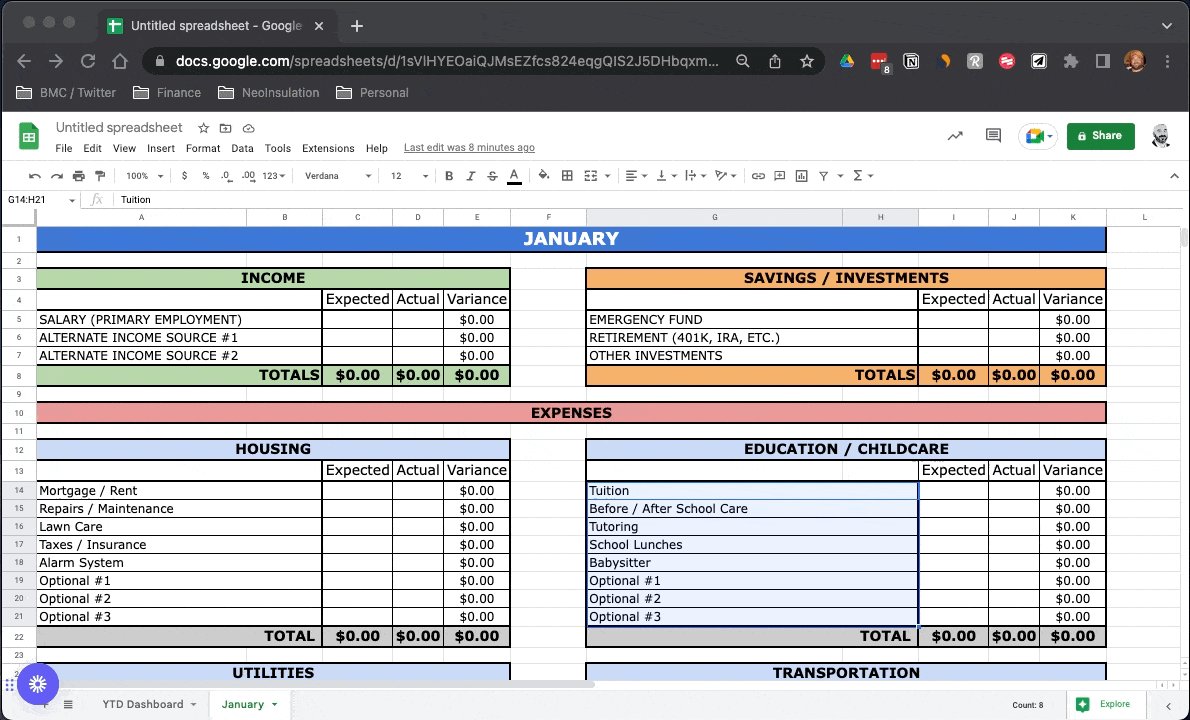
For the sake of time & simplicity, I've gone ahead & populated January with a few sample ideas:
• High-level categories: Income, Savings, & Expenses.
• Subitems below each:
Income → Salary
Housing → Lawn Care
Utilities → Electric
And so on...
Step 3: Basic Formatting
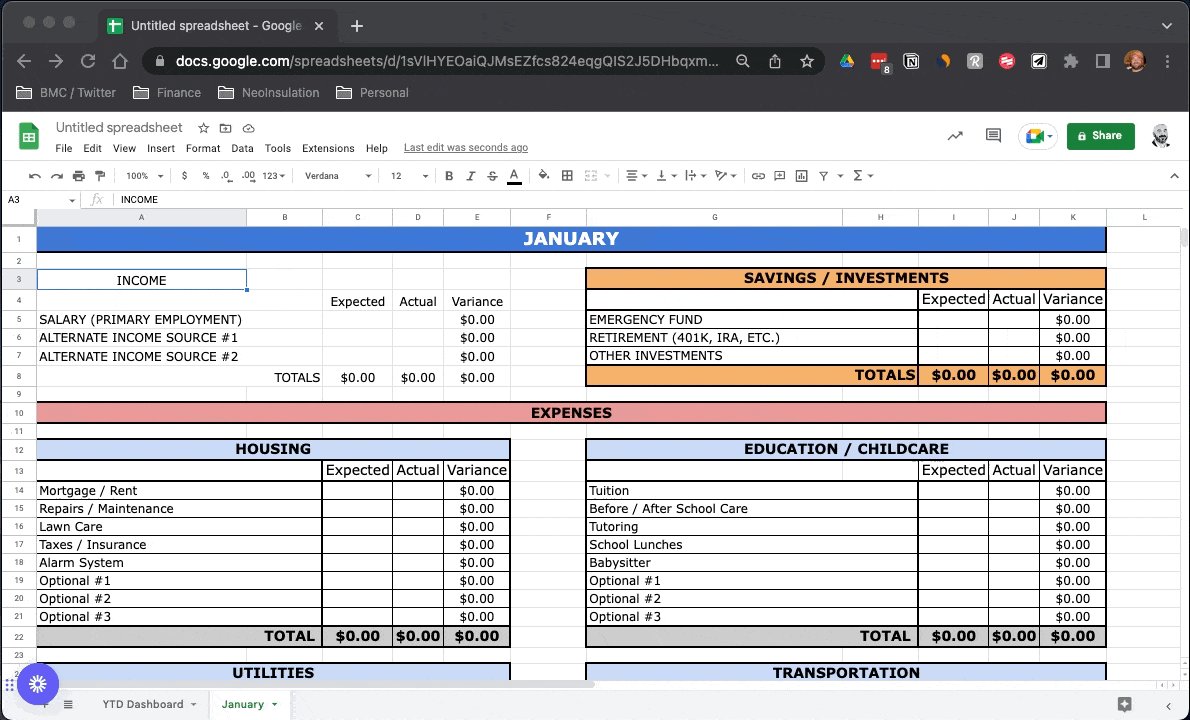
I like things to be formatted in a similar manner across sheets.
A few quick rules of thumb I've used here:
• Headings: Merge + Center, ⬆ Font, Bold
• Sheet Gridlines: Turned off
• Subitems: Heavy borders
• Totals: ⬆ Font, Bold
For example:
Step 4: Simple Formulas #1
• To start each month, fill out the "Expected" cell for each category & subitem.
• Fill in the "Actual" cell for each item as transactions happen.
• The "Variance" shows the difference between the two using a simple +/- formula.
Shown here:
Step 5: Simple Formulas #2
The "Totals" cells inside each category also contain a couple of simple formulas:
• Total "Expected/Actual" –– An easy "SUM" formula to total all subitems.
• Total "Variance" –– An easy +/- formula to calculate our total category variance.
Step 6: Conditional Formatting
As values are populated throughout the month, I've applied conditional formatting to ALL "Variance" cells.
This provides a visual reference to quickly identify if you're "Actual" values are ahead or behind the values you "Expected."
Here's how:
Step 7: Duplicate Sheets
At this point, your "January" tab is ready to use.
But last I checked there are 11 more months in a year.
Don't worry, with a few clicks & updates you'll be ready to go:
• Add 11 sheets
• Copy & Paste January
• Rename tabs/headings accordingly
Step 8: Dashboard
Now that you have all of your monthly tabs created, it's time to build out the "YTD Dashboard"
• Copy the "January" tab & paste it to "YTD"
• Rename headers accordingly
• Add YTD Expenses & Net Income Section
Like this:
Step 9: Reference Formulas #1
Now let's tie our dashboard to all of our individual monthly sheets.
We'll use the "YTD Income" category as an example.
• Select "Expected" or "Actual" Cell
• Type "=" to begin the formula
• Select the corresponding cell on each monthly sheet.
Step 10: Reference Formulas #2
Skip the "YTD Expenses & "YTD Net Income" sections for now.
Complete the same steps outlined in Step 9 for the "Housing" category.
Once done, you can copy & paste the expected + actual fields to the other expenses.
Formulas will carry over.
Step 11: YTD Expense + Net Income
As mentioned above, on the "YTD Dashboard" tab I have also added a summary section for the following:
• YTD Expenses: High-level summary totals for all Expense Categories
• YTD: Net Income: Total Income - Total Expense
See here:
Step 12: Custom Graphs
As a final step, we'll go ahead & add a couple of charts to the dashboard to visualize our data:
• YTD Income: A comparison of expected vs actual income for the year
• YTD Expenses: A comparison of expected vs actual expenses for the year
Like this:
Step 13: Free Template
As promised, I've shared a link to the free template below for you to use.
My only ask?
• Follow me
@blakeaburge for more spreadsheet & productivity tips.
• Check out my newsletter below. You'll get more cool things, I promise.
https://t.co/1J6wGcgrev
That's all for today!
If you like free stuff (and who doesn't) sign up for my newsletter:
Nerd Alert 🚨
A weekly serving of software tips, free templates, & video tutorials.
Over 20,000 people read it, you should too.
https://t.co/8gpnSlBhyx