9 hidden Chrome features guaranteed to make your life easier: 🖥

Tab Groups:

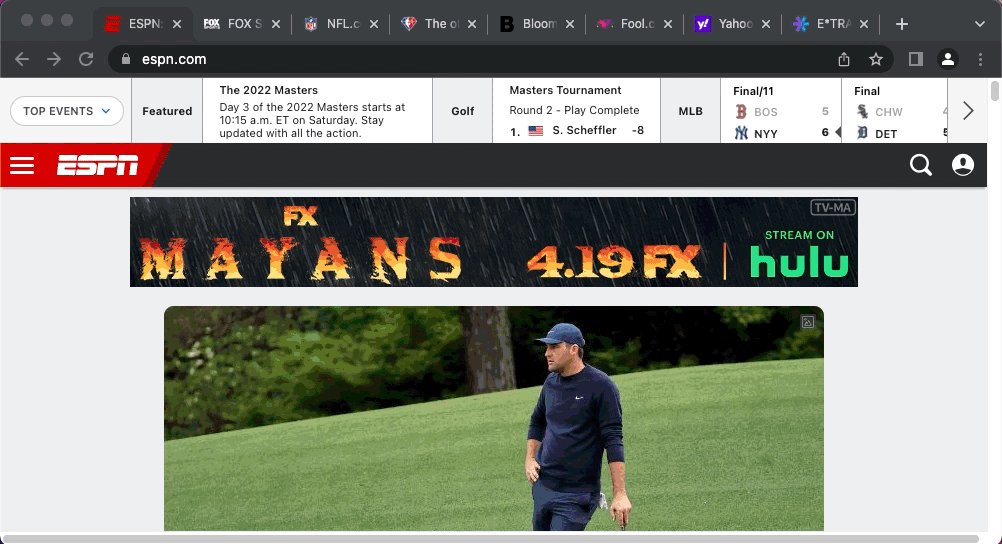
I've got a bad habit and I'm guessing you do as well.

Too Many Open Tabs!

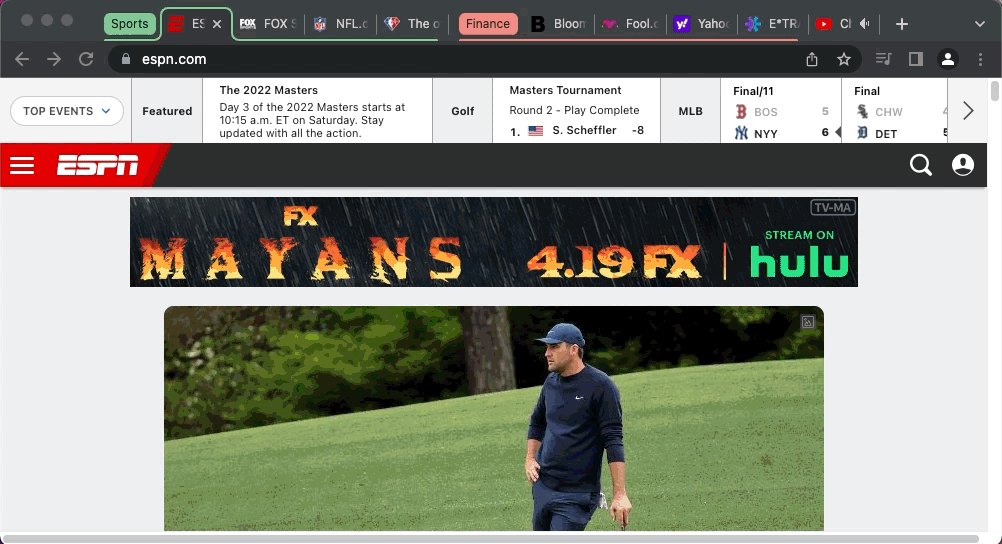
Tab Groups are an easy way to still keep them open and get organized at the same time.

• Select multiple tabs
• Right-click
• Add tabs to a new group

Expand & retract as needed.
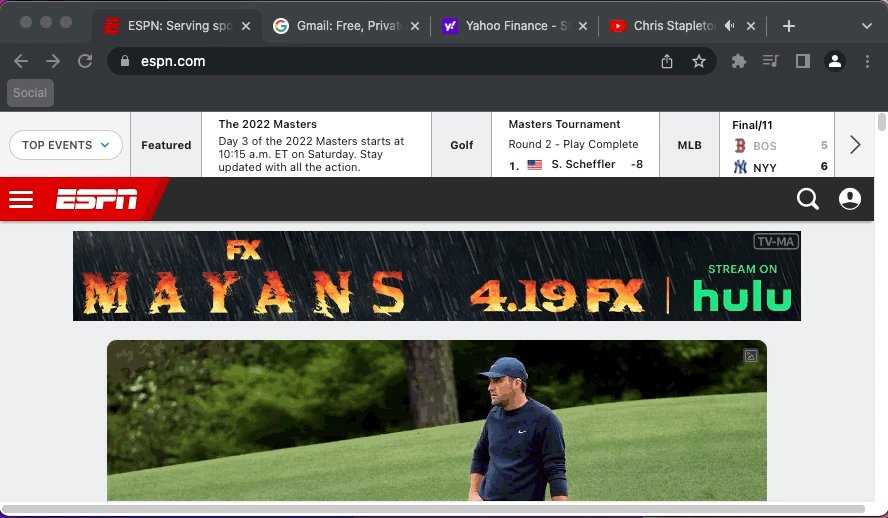
Control Audio / Video playback:

If you're working in one tab while listening to music or watching a video in another, there's no need to navigate away to make adjustments.

Pause, skip to the next track, adjust volume, and more by clicking the music note icon in the menu bar.
Custom search engines:

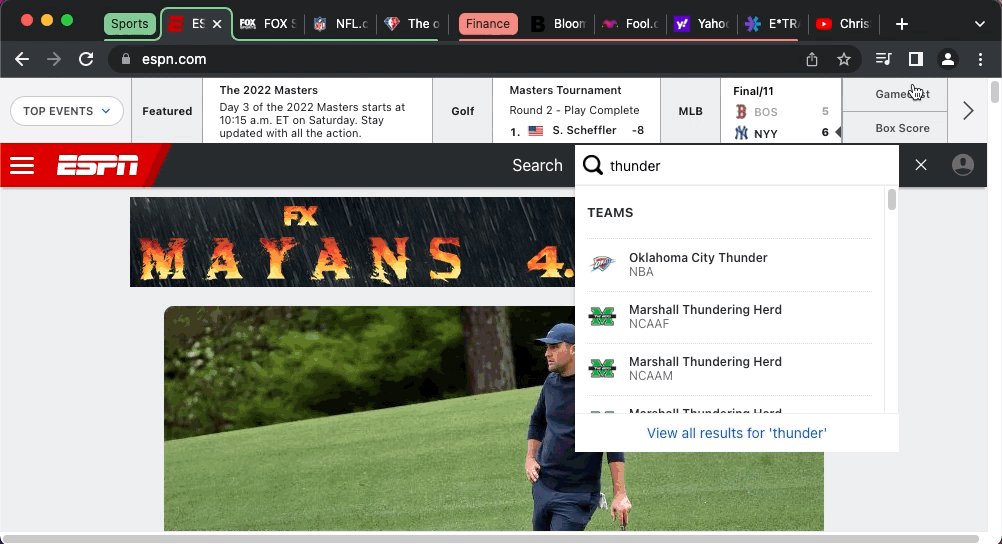
Turn your address bar into a search engine for basically any site with a "search" function.

Go to a site of your choice
Search for a topic
Copy the URL
Head to settings>Search engine>Site search>Add

Here it is in action:
Keyboard Shortcuts for extensions:

Did you know you can set up Keyboard shortcuts for all of your Google Chrome extensions?

Just enter the URL below and you can do exactly that.

chrome://extensions/shortcuts

Here I'll set one up to quickly access Similarweb on any page:
Pinned Tabs:

Do you have a few sites you visit all the time?

Try out "pinned tabs."

Right-click the tab
Select "pin"
Boom!

The tab is reduced in size and pinned to the left side of your screen.

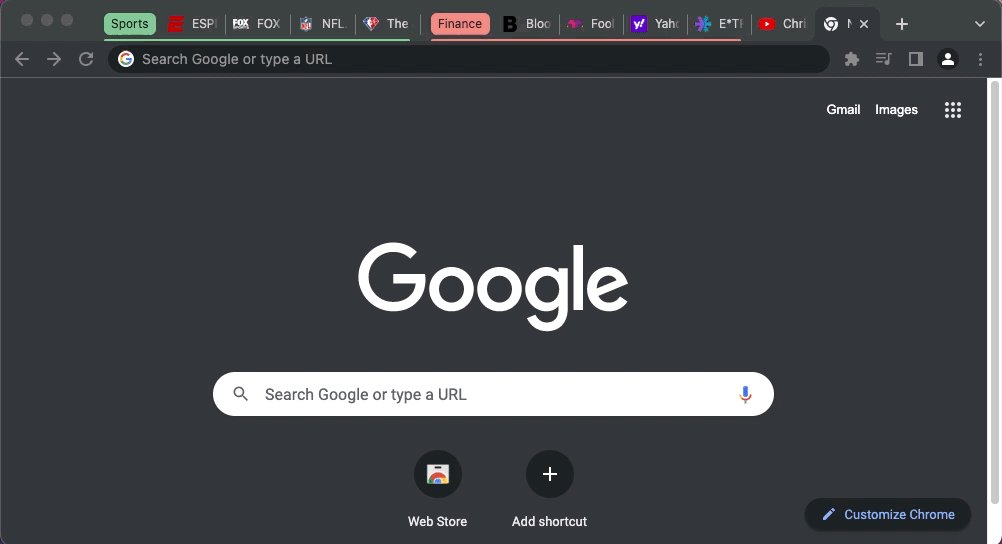
Close Chrome? No problem.

Pinned tabs reappear each time you open your browser.
Bookmark tabs into folders:

I love bookmarks––maybe a little too much...

I'm always running out of room & end up fighting with myself over which ones make the cut to live on my screen.

No more.

• Right-click the window
• Bookmark all tabs
• Create folder
• Done!
Sharing:

Quickly share links, cast to devices, create QR codes, and more.

Head to your address bar
Click the "share" icon
Select your choice and you're done.

It's that easy.
Startup Pages:

When it comes to working, I have a few pages I need to have open every day.

Rather than manually typing them in each day, I have my browser set to open them automatically.

Open the pages you wish to see.

Head to settings>On startup>Open specific>Use current
Mute Tabs:

There aren't many things I find more annoying than when a site starts randomly playing a video with sound.

Suddenly, your work is interrupted by an ad for the latest widget you can't live without.

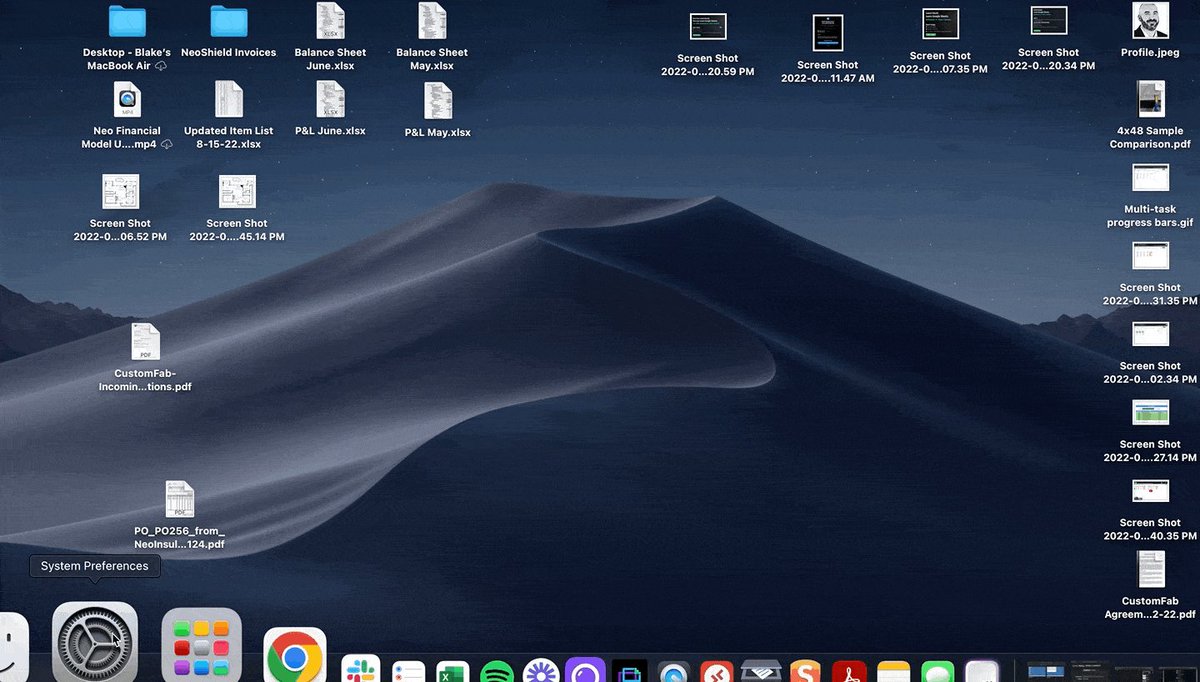
Find the tab with the 🔉 icon
Right-click
Mute site
Get back to work!
That's it for today!

Hopefully, you learned something new!

Follow me @blakeaburge for weekly threads on business & productivity.

Join 8,000 others & check out my newsletter:

"While You Were Away"

•The best of Twitter
•In your inbox
•Every Sunday
https://t.co/KPDWcXYbFv
Once you have Chrome organized, it’s time to get your meetings straightened out as well.

Here’s what Steve Jobs recommended: https://t.co/CX0GsI93Vh

More from Blake Burge 💡

Google Sheets isn't Excel...

But it's more powerful than you think.

8 things Google Sheets can do, you'll wish you knew yesterday. 📊

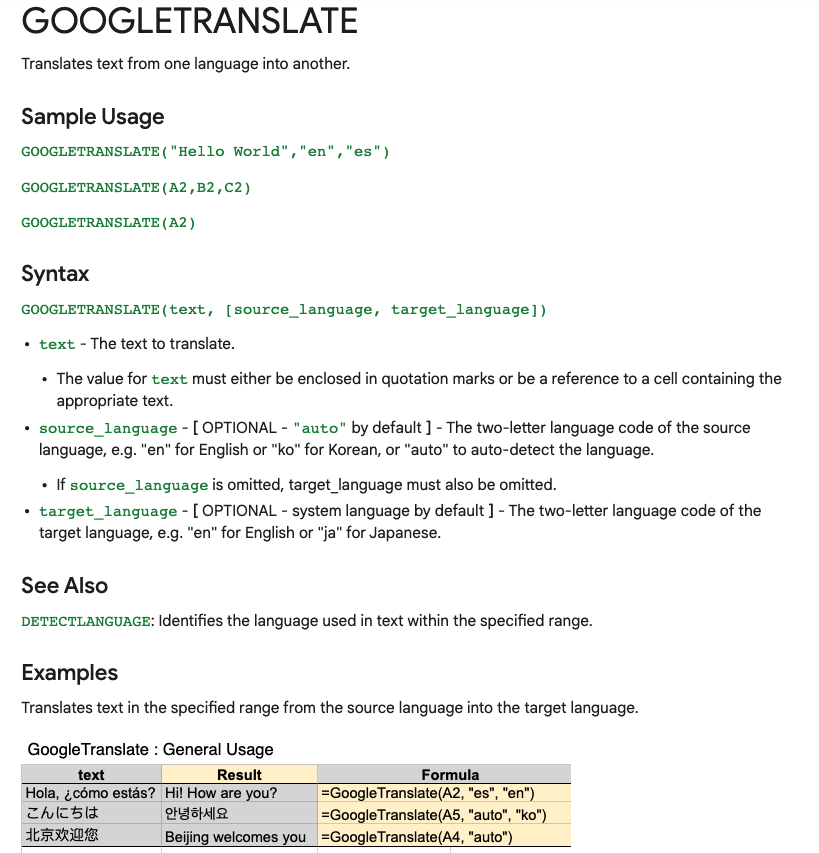
Translate Text:

Need to convert data from one language to another?

Enter:
=GOOGLETRANSLATE("A2","en","es")

This will translate the words in cell "A2" from English to Spanish.

Replace "en" with "auto" and Sheets will identify the source language automatically.


Timesavers:

Assuming you're signed in to your Google account, head on up to your browser's address bar:

From there type: "
https://t.co/BeKgYV7g31"

Boom! A new Google sheet is created for you on the fly from anywhere on the web.

(Works for docs too)

Pretty cool!


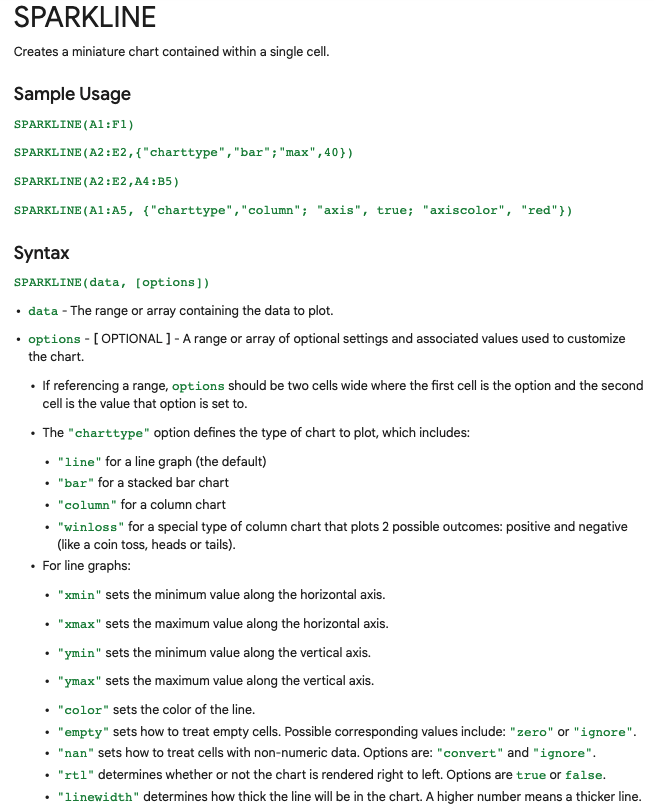
Sparklines:

Easily visualize data trends by adding sparklines to your sheet.

To add a basic "mini-graph" inside a cell, it's as simple as inputting:

=SPARKLINE (A1:F1) – (Where A1:F1 represents your range of data.)

For more detailed options, check this out:👇🏻


Explore:

Need to do some number crunching?

Let Google's AI do the work for you.

•Highlight the range of data.

•Move your cursor to the starburst shaped icon in the bottom right corner.

•Click "Explore" – Complex charts, analytics, & detailed info. generated automatically.

More from Screeners

Central Pivot Range—(CPR)

What does it mean?

7 tweets that will teach you about its basics (and much more):🧵

Collaborated with @niki_poojary

1/ What is CPR?

The basics of CPR, how it's calculated, and TC and BC in CPR.

User: @ZerodhaVarsity.

One can also gauge the trend whether bullish or bearish.

Explained in very simple words

@ZerodhaVarsity 2/ What are the Uses of CPR?

User: @YMehta_

A thread that provides examples along with the concept.

Also includes an Intraday Trading Setup on 5 min


@ZerodhaVarsity @YMehta_ 3/ How to analyze trends with CPR?

User: @cprbykgs

How to interpret CPR based on the candles forming either above or below the daily and weekly CPR.

He is the most famous guy when it comes to CPR, so go through his Twitter and Youtube


@ZerodhaVarsity @YMehta_ @cprbykgs 4/ Interpreting longer timeframes with CPR

User: @cprbykgs

Trend Reversals with CPR when the trend is bullish and it enters the daily CPR

You May Also Like