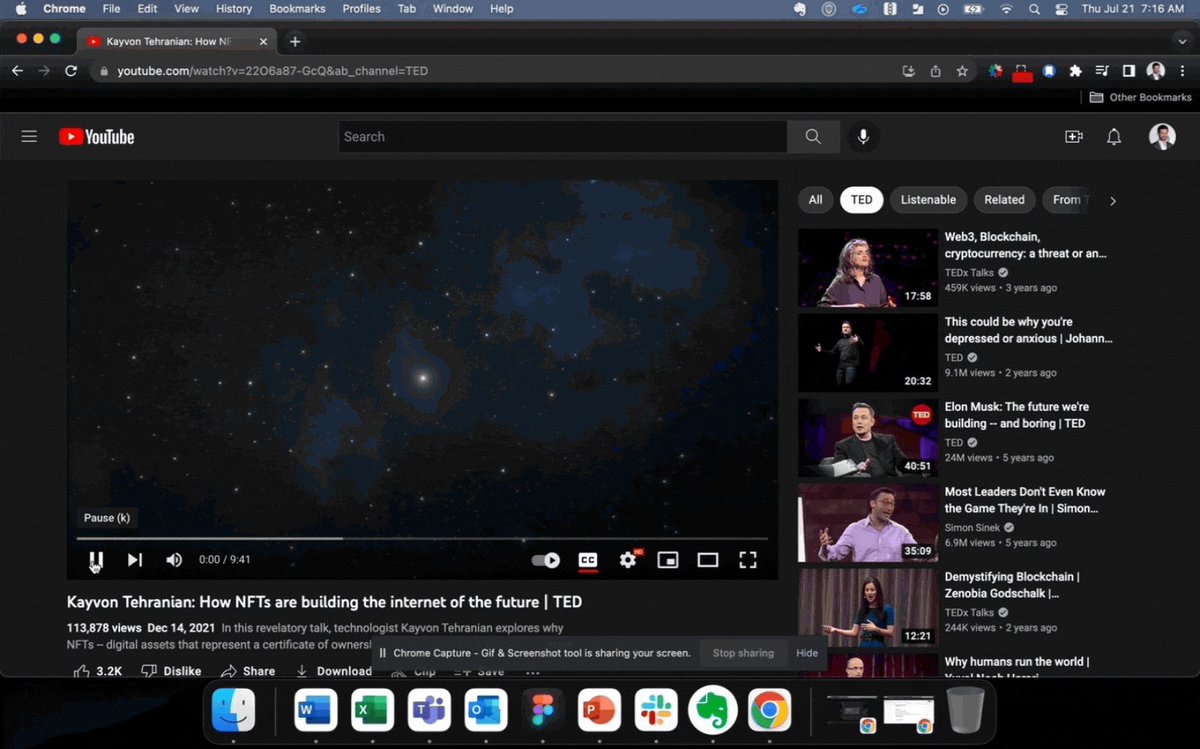
1. Picture-in-picture
Watch videos in a small, floating window.
Maybe there's an online class you'd like to keep an eye on...
But you want most of your screen to be something else (like a word doc to take notes).
• Control+Click the video twice
• Select Picture-in-Picture
2. Volume & Brightness Micro Adjustments
Press a volume key, and it will adjust one whole notch.
But what if that's too loud or soft?
Make micro adjustments (0.25 increments):
Shift + Option, then press the volume or brightness control.
Yep—that blew my mind too.
3. Split View
Work in two apps at the same time, side-by-side.
Lock them in place:
• Hover over the full-screen 🟢 button
• Choose the L or R side
• Content will fill that side
• Fill the other side by clicking a window
• Slide the vertical line to adjust the width
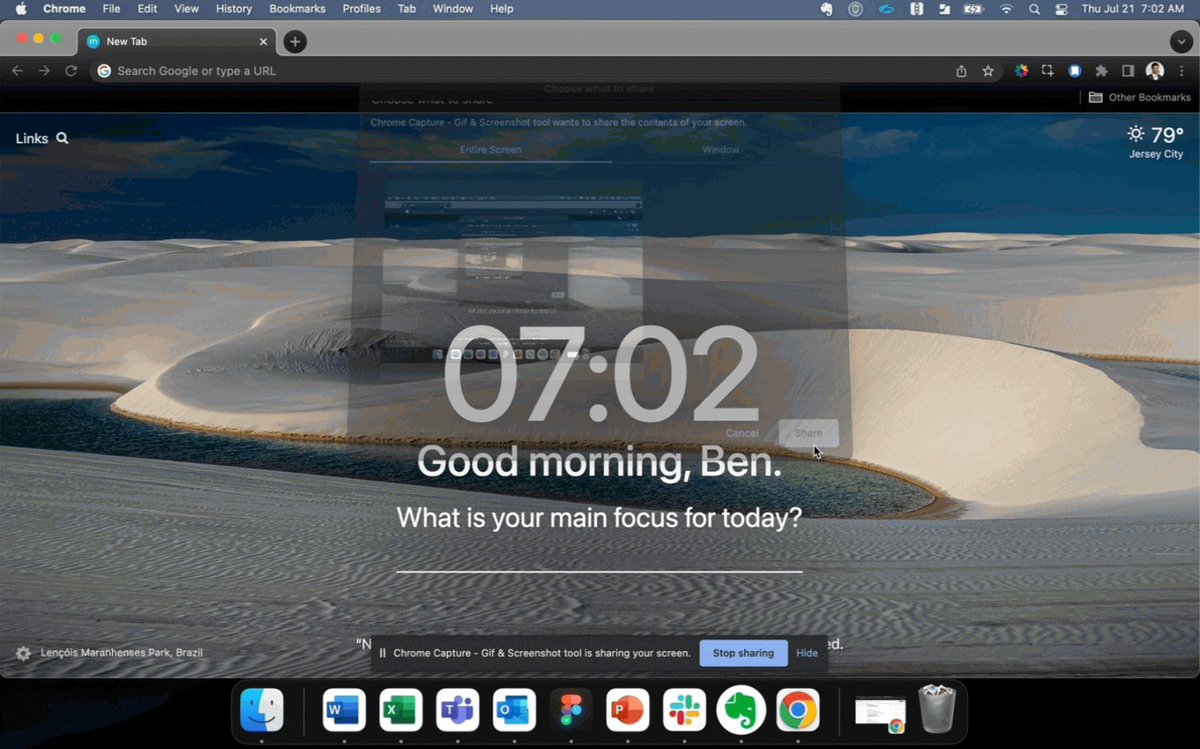
4. Screen Sharing
Need to troubleshoot a grandparent's tech issue?
Remotely access + control their screen (built-in Mac feature):
1. Open Spotlight [Command + Space]
2. Search 'Screen Sharing'; open app
3. Type in the Apple ID of the desired screen
4. Owner then grants access
5. Advanced Spotlight
Command + Spacebar will open Spotlight.
Perhaps you already use Spotlight to quickly search + launch apps
(it’s way faster than mouse navigation).
You can also use Spotlight for:
• Calculation
• Unit conversion
• Retrieving stock quotes (input ticker)
6. Duet Display (Map App)
Create a second display wirelessly.
More Benefits:
• Compatible with PCs, Macs, iPads, or Androids.
• No lag, robust connection (built by Ex-Apple engineers)
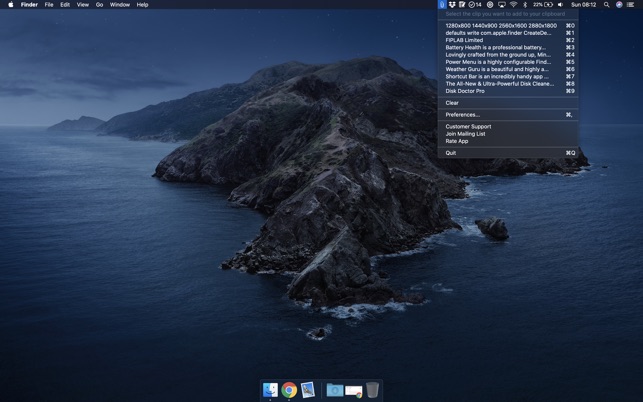
7. CopyClip (Mac App)
Effortlessly access your clipboard history.
CopyClip runs discreetly in your menu bar.
It's a timesaver, especially for students and writers.
https://t.co/oMKSTwnMlP
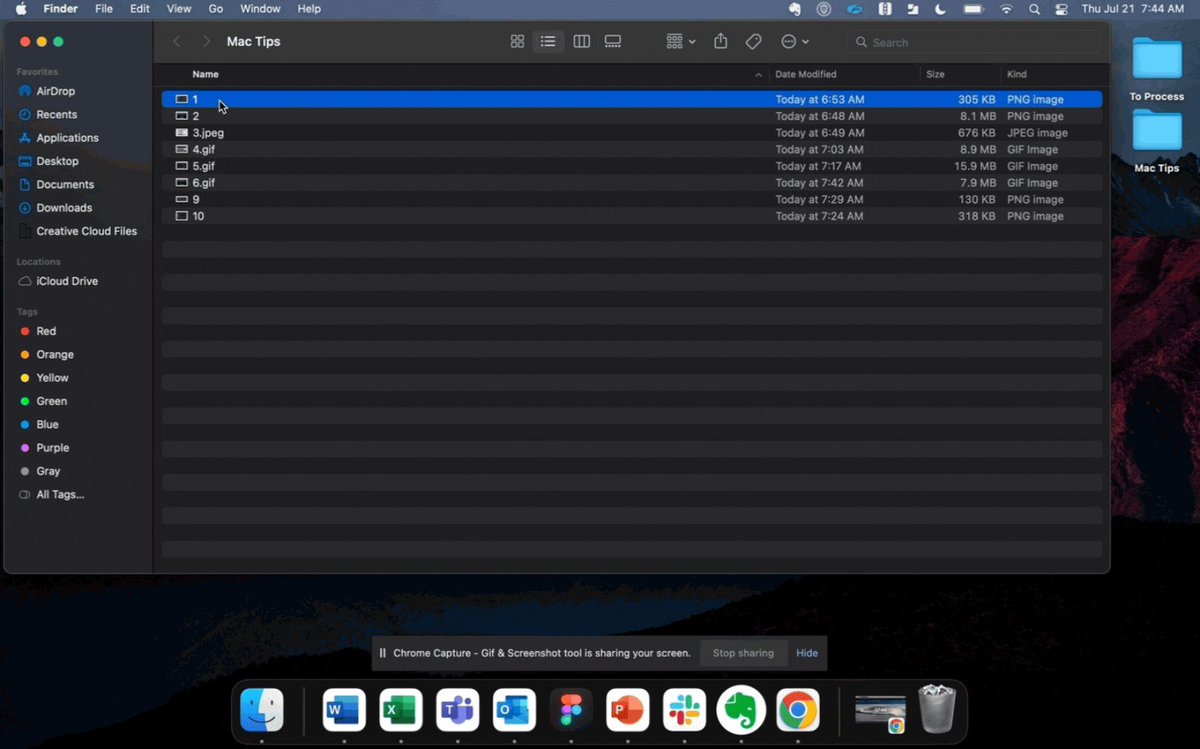
8. Quicklook Preview in Finder
Say you're in Finder and want to preview a file
(perhaps to check to see if it's the right one.)
Instead of double-clicking the file to open it,
Hit the Spacebar for a popup preview, then Spacebar to close.
Simple, but it'll save you time.
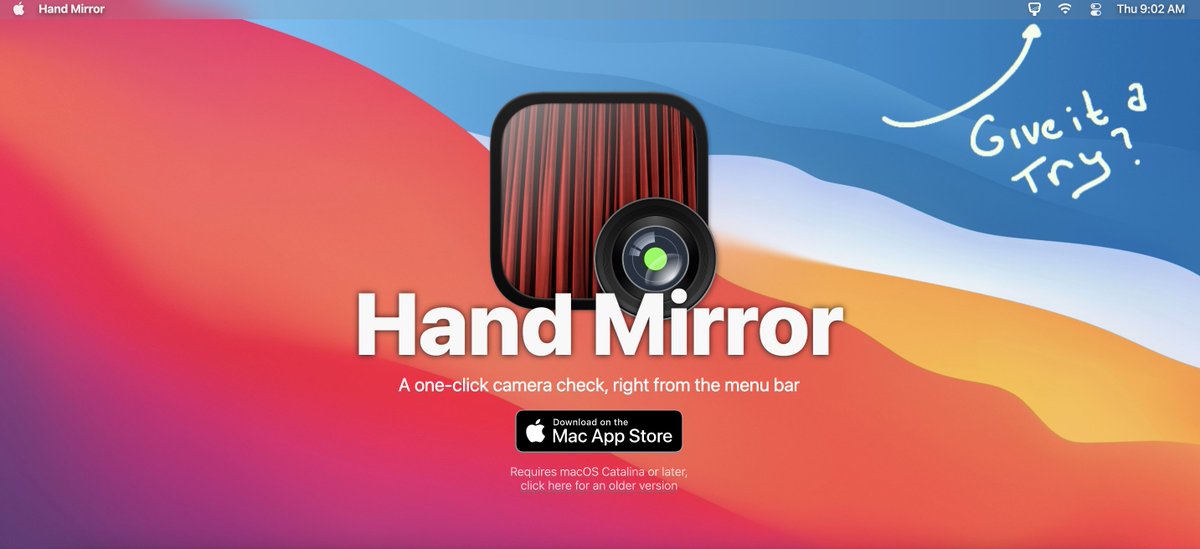
9. Hand Mirror (Mac App)
Get a quick preview of how you (and your background) look on camera—before joining any call.
This Mac app lives in the menu bar.
https://t.co/ggPv4gwbQk
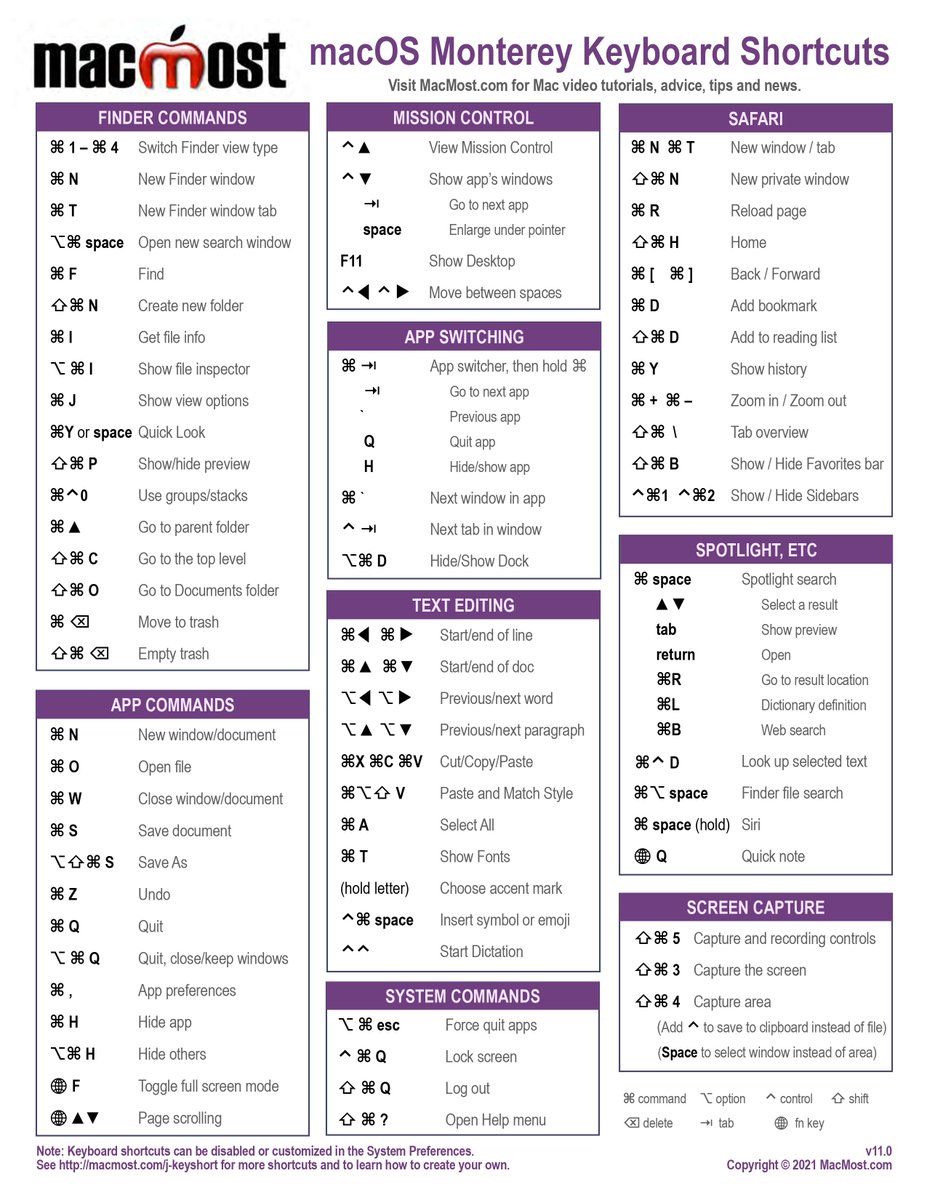
10. Keyboard Shortcuts
My favorite shortcuts:
• Cmd+N: New window/doc
• Cmd+Q: Close app
• Cmd+M: Minimize app
• Cmd+H: Hide current app
• Cmd+Tab: Navigate forward between apps
• Cmd+Shift+Tab: Navigate reverse between apps
Here's a useful cheat sheet:
Thanks for reading! Follow me
@SystemSunday for more content like this.
https://t.co/DLZQVzdKZj
P.S. If you like productivity, you will love my weekly newsletter (it’s free).
Every Sunday I feature the best tech products for wealth, health, and free time.
Try it here:
https://t.co/pjCfCFXONW