Here are 10 Things you didn't know your Mac could do (until now) 💻

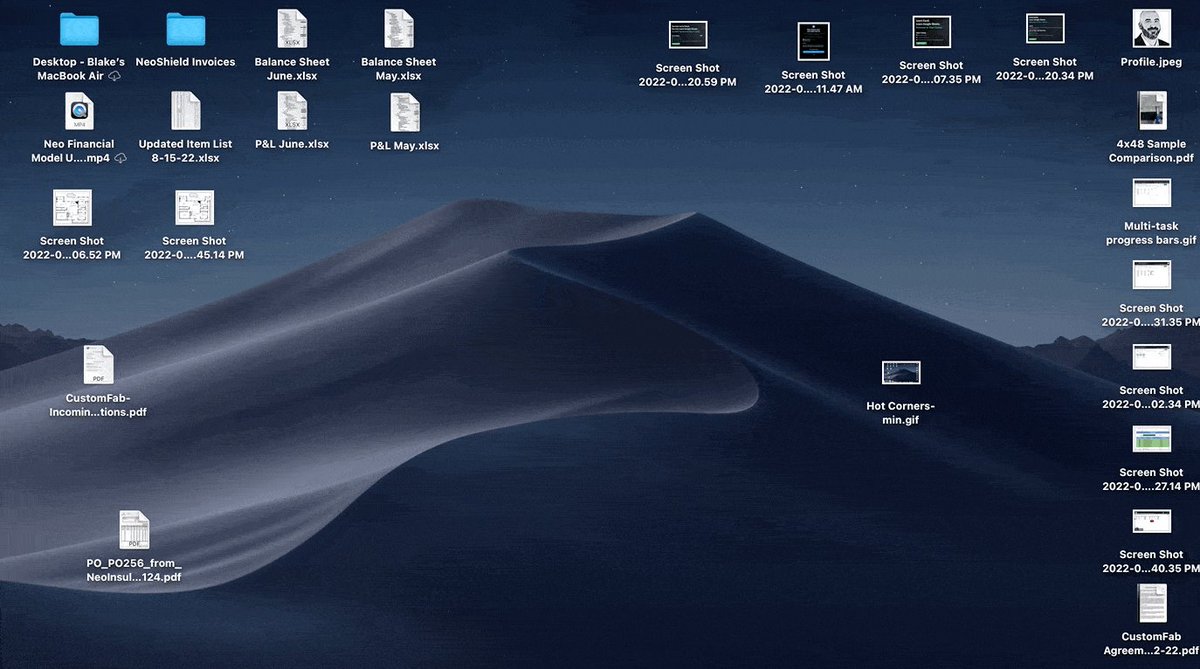
Hot Corners:

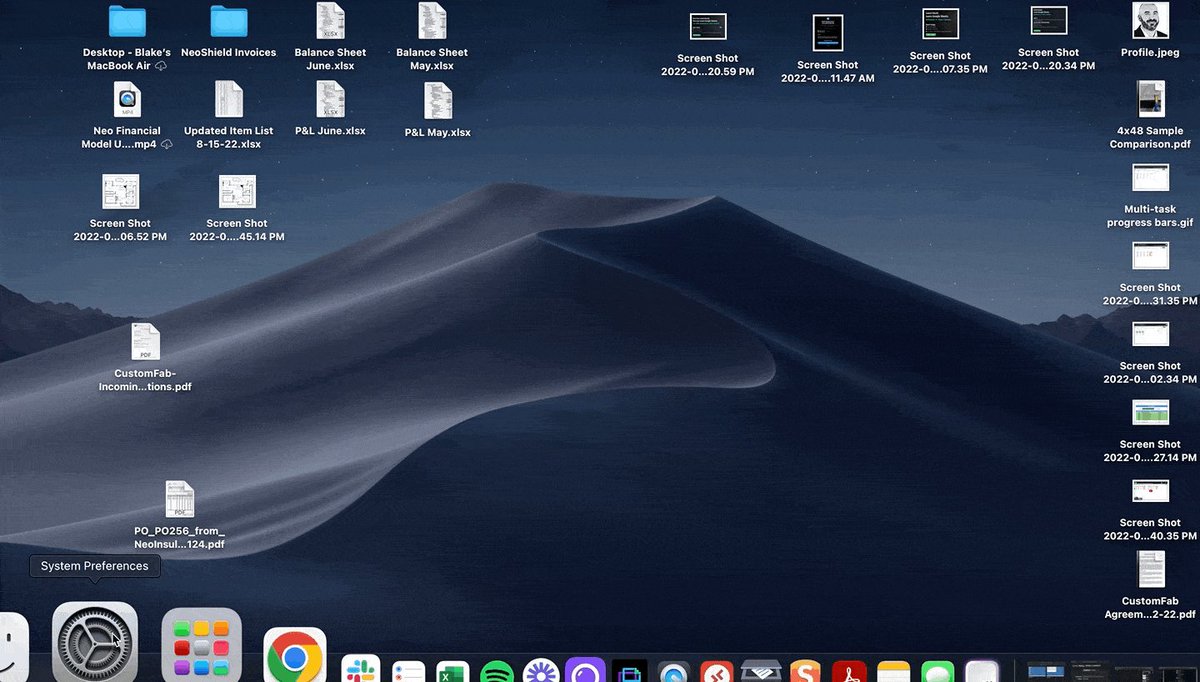
Launch various actions within your computer simply by moving your mouse to one corner of the screen or another.

• System Preferences
• Mission Control
• Hot Corners
• Select the action to launch
Specific Screenshots:

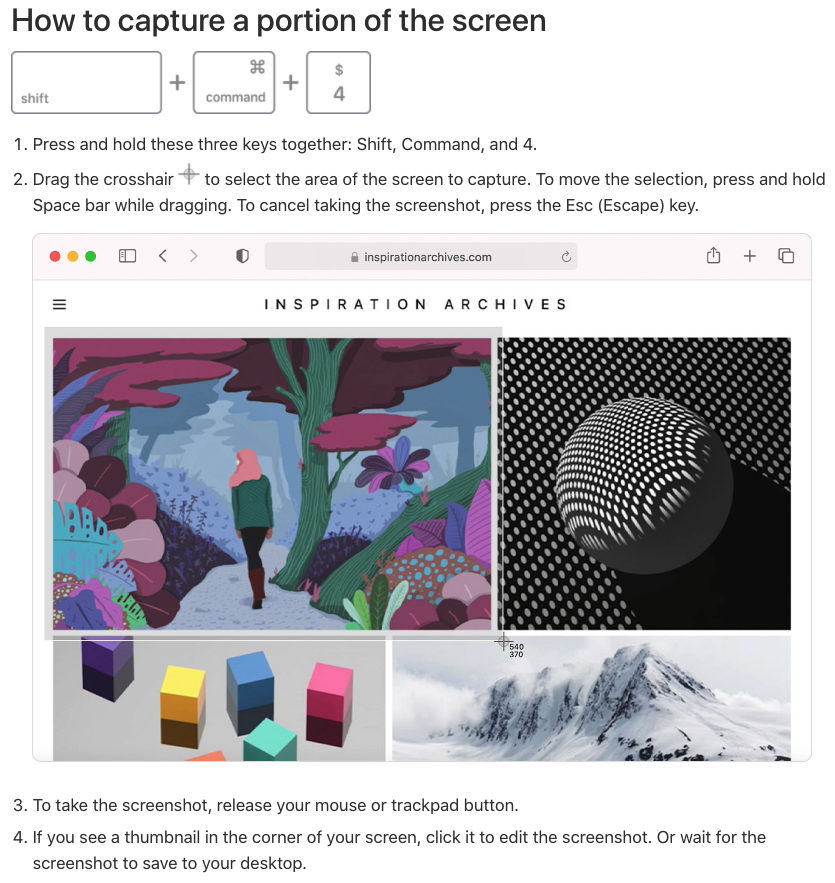
SHIFT+CMD+3 will capture your entire screen.

Did you know you can also narrow your capture to a specific portion?

It's easy, & now that I know it exists, I use it every day.

A simple SHIFT+CMD+4 and you're on your way.
Digital Signatures:

Have a PDF you need to sign?

Let's skip all the printing, physical signing, scanning, etc.

Using the "preview" app you can easily create a digital signature.

All you need is a pen, a white piece of paper, & your Mac's camera.
https://t.co/3ACdKofm0I
File Stacks:

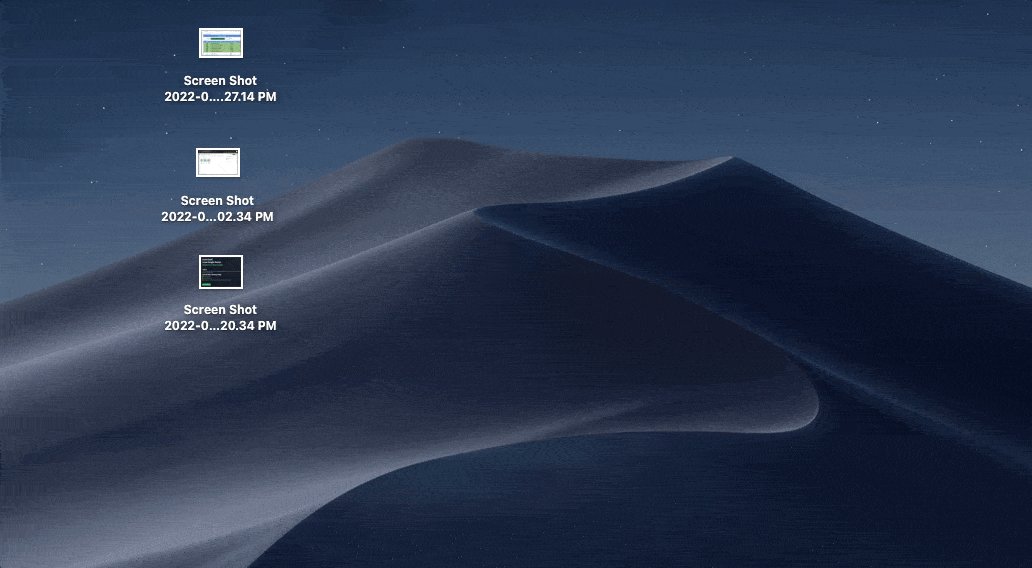
I'm a bit OCD when it comes to my desktop.

I like to keep things very organized and can't stand to have a bunch of different files scattered across the screen.

• Right Click
• Use Stacks
• Files are now "stacked" by type

Click a group to see the files within.
Annotate PDF's

While the preview app doesn't allow for text editing, it does provide some other pretty cool features.

By selecting the "markup" toolbar, you can unlock multiple collaborative options:

•Add notes
•Suggest changes
•Sketch, draw, & share ideas.

Here's how:
Keyboard Shortcuts:

I was sitting in my office recently & noticed one of my coworkers seemingly flying through tasks.

Without ever using his mouse.

I thought, "man, I've got to learn keyboard shortcuts."

With this in mind, here are the basics to get us started.
Custom shortcuts:

Speaking of keyboard shortcuts, did you know you can make one for literally anything?

Go to:

System Preferences->Keyboard
->App Shortcuts->Click the +

Have a menu option you use all the time, but a shortcut doesn't exist?

No worries. Create your own!
Create PDFs from images:

Let's say you have multiple images you'd like to share but the files are too large.

Converting them to a PDF is super simple.

Just Command +select all files
Right-click -> Quick Actions
Create PDF
Control Someone Else's Screen:

Type Command + Spacebar to open spotlight search.

Once inside, type "screen sharing" in the search box and select the option.

Type in their Apple ID and they'll receive a prompt to let you control their screen, straight from your own computer!
Split View:

If you're like me, you can't have enough screen real estate.

Here's how to 2X your viewable area:

Hover your pointer over the full-screen button 🟢 in the upper-left corner.

->Tile left or right
->Click a window on the other side

BOOM!

Two apps, one screen
If you learned something new, follow me @blakeaburge for weekly threads on productivity and software tips.

You'll probably like my newsletter as well:

NERD ALERT

• 3 Tech Tips
• Every Sunday
• 5 Minutes or Less

Why not give it a try? It's free.
https://t.co/8gpnSlBhyx

More from Blake Burge 💡

How to get rich, learn anything, and get more done.

11 Tweets to change your life. 🧵

1/ Learn Anything:

A masterclass from my friend @SahilBloom

The 6-step framework he uses to learn anything.

(1) Identify & Establish
(2) Research
(3) Skin in the Game
(4) Engage Community
(5) Teach
(6) Reflect &


2/ A cheat sheet for building your career:

20 things you'll wish you knew sooner.

An amazing piece by @RomeenSheth on career


3/ The 5 Traits of Elite Individuals:

I'm not sure what rock I've been living under...

I've somehow just now stumbled across @NdamukongSuh's Twitter content.

It's a goldmine.

Case in point


4/ Where you are -> Where you're going:

•Be consistent
•Set higher standards
•Learn to say "no" more
Google Sheets isn't Excel...

But it's more powerful than you think.

8 things Google Sheets can do, you'll wish you knew yesterday. 📊

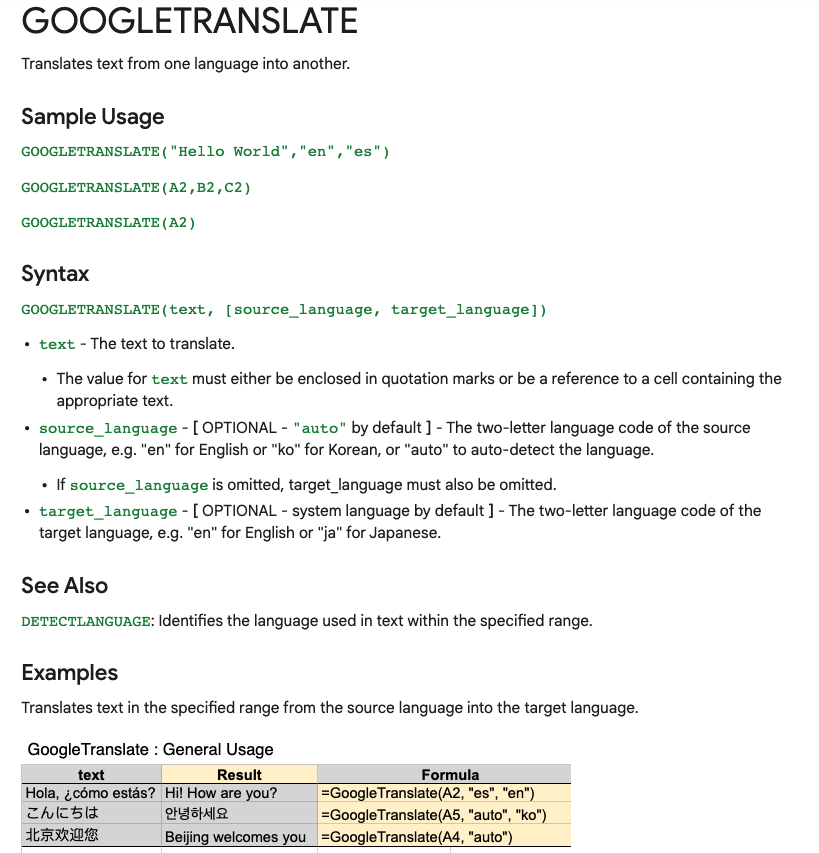
Translate Text:

Need to convert data from one language to another?

Enter:
=GOOGLETRANSLATE("A2","en","es")

This will translate the words in cell "A2" from English to Spanish.

Replace "en" with "auto" and Sheets will identify the source language automatically.


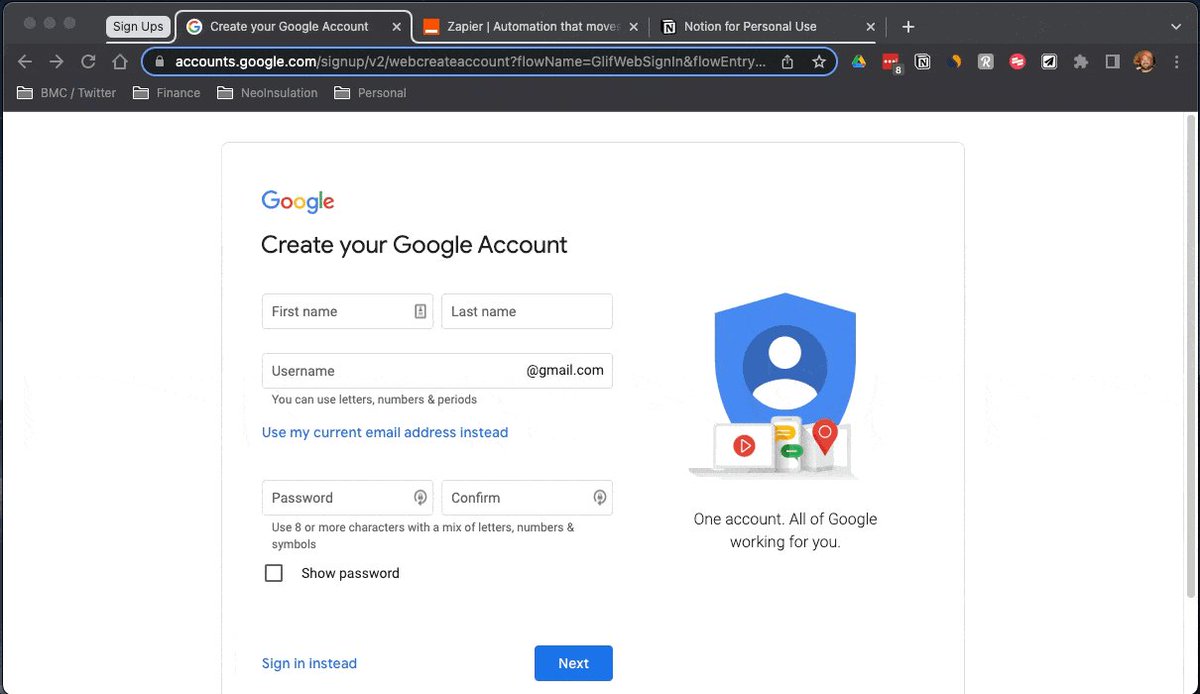
Timesavers:

Assuming you're signed in to your Google account, head on up to your browser's address bar:

From there type: "
https://t.co/BeKgYV7g31"

Boom! A new Google sheet is created for you on the fly from anywhere on the web.

(Works for docs too)

Pretty cool!


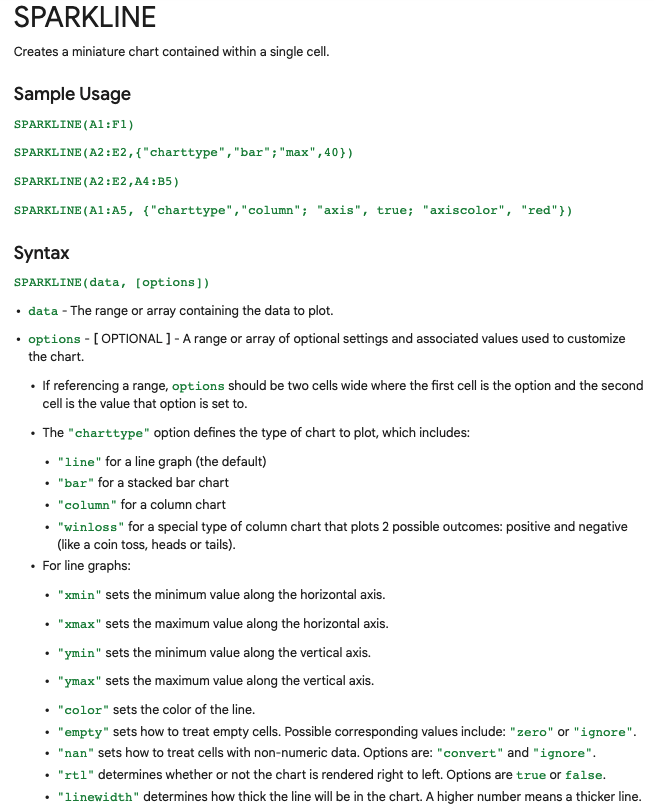
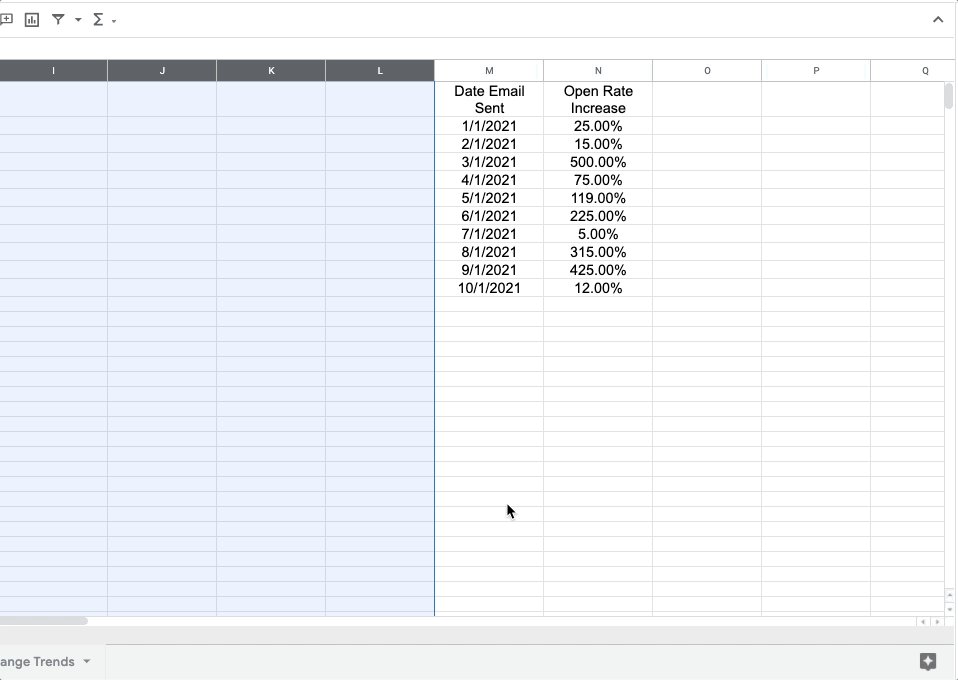
Sparklines:

Easily visualize data trends by adding sparklines to your sheet.

To add a basic "mini-graph" inside a cell, it's as simple as inputting:

=SPARKLINE (A1:F1) – (Where A1:F1 represents your range of data.)

For more detailed options, check this out:👇🏻


Explore:

Need to do some number crunching?

Let Google's AI do the work for you.

•Highlight the range of data.

•Move your cursor to the starburst shaped icon in the bottom right corner.

•Click "Explore" – Complex charts, analytics, & detailed info. generated automatically.
Success isn't a mistake.

8 steps to build the life you want. 🧵

Clock In:

It's time to go to work.

There are no magic bullets & "get-rich-quick" doesn't exist in the real world.

Immerse yourself in learning, have a bias toward action, be willing to do what others won't.

Do this & you won't need to look for results, they'll find you.

Work from the top down:

The fastest way to get from where you are to where you want to be?

Find someone who's already there.

Learn from them, seek advice, & follow the path they've forged.

Reach out.

People are more willing to help than you think.


Persist:

The bigger your goals, the more likely it is they'll take longer to achieve.

Most people fail when they quit right before their plan is beginning to work.

By stopping, they never know how close they actually were.

Be consistent. Keep going.

h/t@visualizevalue


Build your personal brand:

We're all selling something, often it's ourselves.

Give before you get.

Provide value, be unique, be consistent.

Once people know what to expect from you, they'll come back for more.

The best advertisement in the world is repeatable results.

More from All

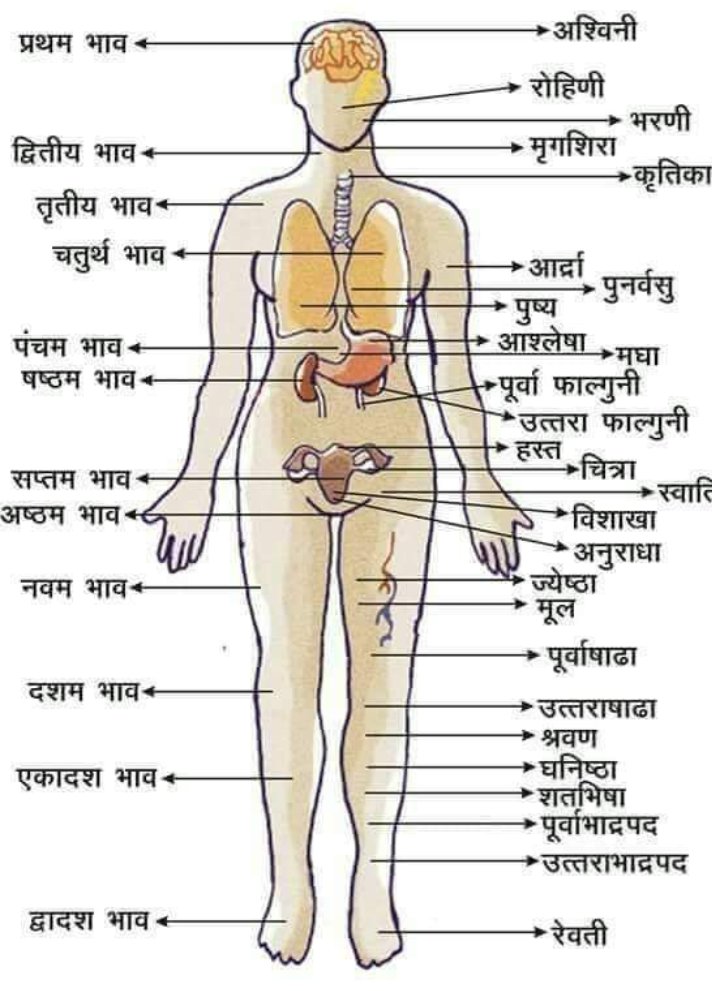
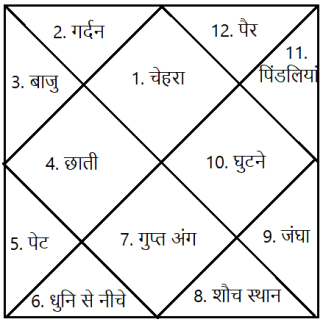
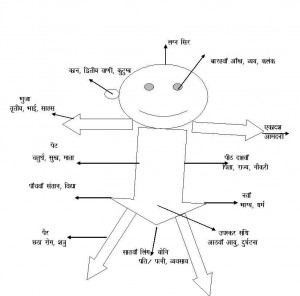
कुंडली में 12 भाव होते हैं। कैसे ज्योतिष द्वारा रोग के आंकलन करते समय कुंडली के विभिन्न भावों से गणना करते हैं आज इस पर चर्चा करेंगे।
कुण्डली को कालपुरुष की संज्ञा देकर इसमें शरीर के अंगों को स्थापित कर उनसे रोग, रोगेश, रोग को बढ़ाने घटाने वाले ग्रह


रोग की स्थिति में उत्प्रेरक का कार्य करने वाले ग्रह, आयुर्वेदिक/ऐलोपैथी/होमियोपैथी में से कौन कारगर होगा इसका आँकलन, रक्त विकार, रक्त और आपरेशन की स्थिति, कौन सा आंतरिक या बाहरी अंग प्रभावित होगा इत्यादि गणना करने में कुंडली का प्रयोग किया जाता है।


मेडिकल ज्योतिष में आज के समय में Dr. K. S. Charak का नाम निर्विवाद रूप से प्रथम स्थान रखता है। उनकी लिखी कई पुस्तकें आज इस क्षेत्र में नए ज्योतिषों का मार्गदर्शन कर रही हैं।
प्रथम भाव -
इस भाव से हम व्यक्ति की रोगप्रतिरोधक क्षमता, सिर, मष्तिस्क का विचार करते हैं।


द्वितीय भाव-
दाहिना नेत्र, मुख, वाणी, नाक, गर्दन व गले के ऊपरी भाग का विचार होता है।
तृतीय भाव-
अस्थि, गला,कान, हाथ, कंधे व छाती के आंतरिक अंगों का शुरुआती भाग इत्यादि।

चतुर्थ भाव- छाती व इसके आंतरिक अंग, जातक की मानसिक स्थिति/प्रकृति, स्तन आदि की गणना की जाती है


पंचम भाव-
जातक की बुद्धि व उसकी तीव्रता,पीठ, पसलियां,पेट, हृदय की स्थिति आंकलन में प्रयोग होता है।

षष्ठ भाव-
रोग भाव कहा जाता है। कुंडली मे इसके तत्कालिक भाव स्वामी, कालपुरुष कुंडली के स्वामी, दृष्टि संबंध, रोगेश की स्थिति, रोगेश के नक्षत्र औऱ रोगेश व भाव की डिग्री इत्यादि।

You May Also Like