This thread will make you better at Outlook: 📬

Color code your emails:

I like to keep things organized.

I'm forgetful & I get A LOT of emails.

The easiest way I've found to ensure things don't get lost is utilizing conditional formatting.

• View -> View Settings
• Conditional Formatting
• Select type
• Name the rule
Never miss a game:

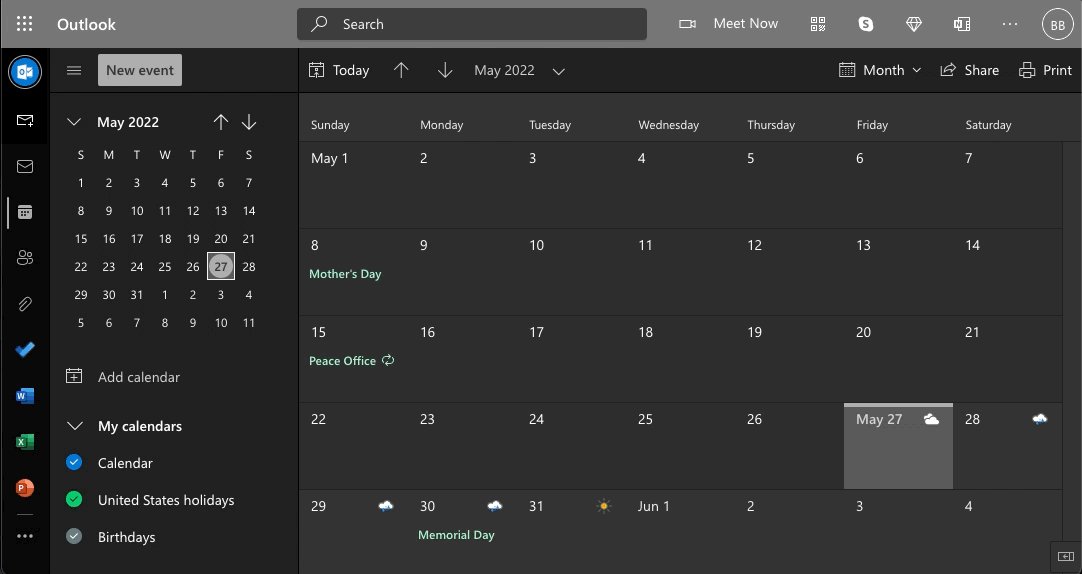
Did you know you can add custom event calendars directly in Outlook?

Never miss your favorite TV show or the next big game.

• Just head to "Add Calendar"
• Select "Sports" or "TV"
• Choose the event you'd like to add.
Send delay:

Sometimes you need to write a message now but wait to deliver it until later.

Just use "Delayed Delivery."

Here's how:

• Write your email
• Select Options -> Delay Delivery
• Choose the "Do not deliver before" time
Email your calendar:

Avoid the back and forth hassle of scheduling meetings.

Simply email your calendar so people know when you're available (and when you're not.)

You can also drag items from the received calendar to your own.

Like this:
Multiple time zones:

With the rise of remote work, the need to keep track of multiple timezones has never been greater.

Outlook makes it easy.

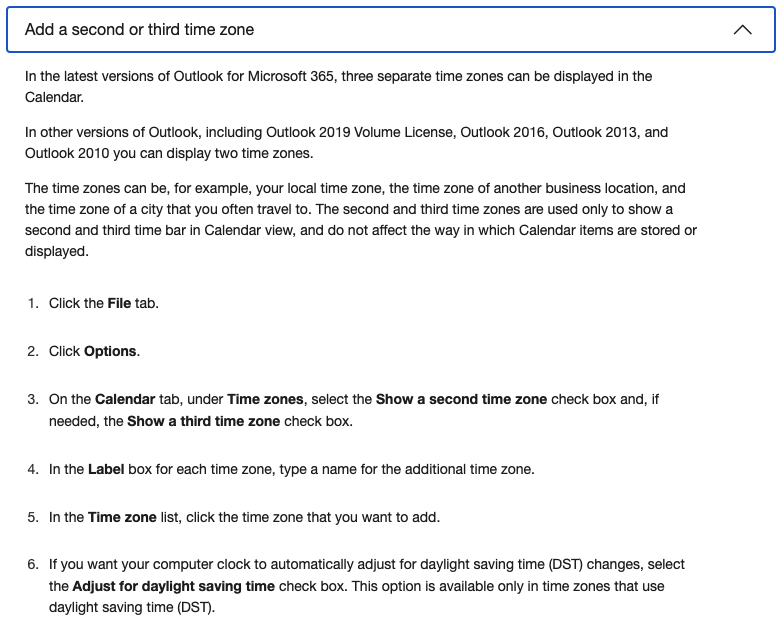
• File -> Options
• Calendar -> Timezones
• ✓ Show second timezone

You'll now have a side-by-side scale for easy reference.
Change preview length:

Did you know you can change the number of lines displayed in the preview pane for each message?

Maybe you'd like to see a couple more.

Perhaps you'd like to see none at all.

It's up to you...

• View -> Message preview
• Select 1, 2, 3 lines (or off)
Keyboard Shortcuts:

I get roasted by people on Twitter sometimes because I'm old-school & still use a mouse.

Well, I'm learning too.

Utilizing shortcuts can dramatically increase your speed, I can't argue with that.

Here are a few of the most popular ones for Windows & Mac:
Quick Steps:

Turn 3 steps into 1.

Quickly manage your inbox by configuring quick steps for common repetitive tasks you do on a regular basis.

• Home -> Quick steps
• Create new -> Name
• Actions 👇🏻

Choose what you want to happen based on the criteria you determine.
Mute Conversations:

Man do I get tired of "reply-all."

Yes, it has a purpose & I too would like to be copied on emails that are pertinent to me.

There are also times when I'm stuck in a never-ending cycle of replies that has 0 to do with me.

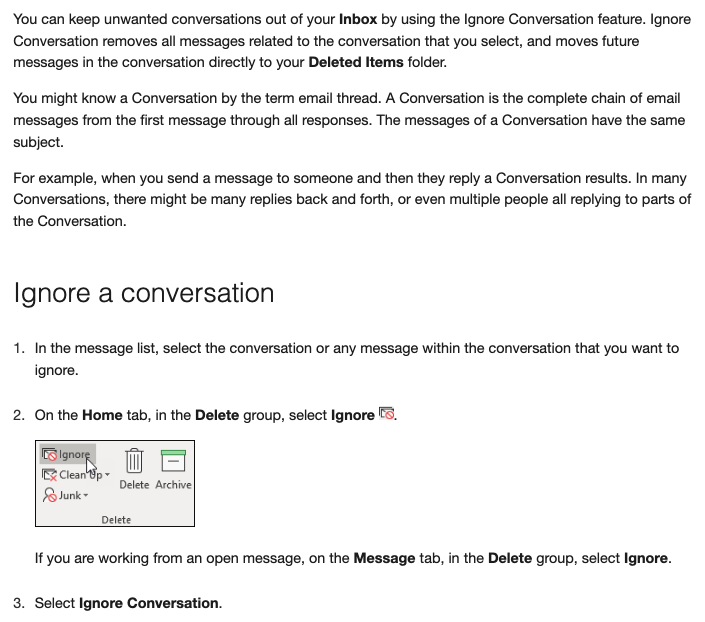
Here's how to stop the madness:
Ok, you've made it this far.

I'm guessing it's safe to assume you're into learning how to be more productive.

Check out my new Excel course.

• Most jobs require basic Excel skills.
• More skills = More money 💵

Simple.

Next round starts in 3 days!
https://t.co/h1cq3W6aLI
That's all for today!

Follow me @blakeaburge for weekly threads on business & productivity.

Join 15,000+ others & check out my newsletter––It's free!

•The best of Twitter
•In your Inbox
•Every Sunday
https://t.co/v49JfYPPKP

More from Blake Burge 💡

Google Sheets isn't Excel...

But it's more powerful than you think.

8 things Google Sheets can do, you'll wish you knew yesterday. 📊

Translate Text:

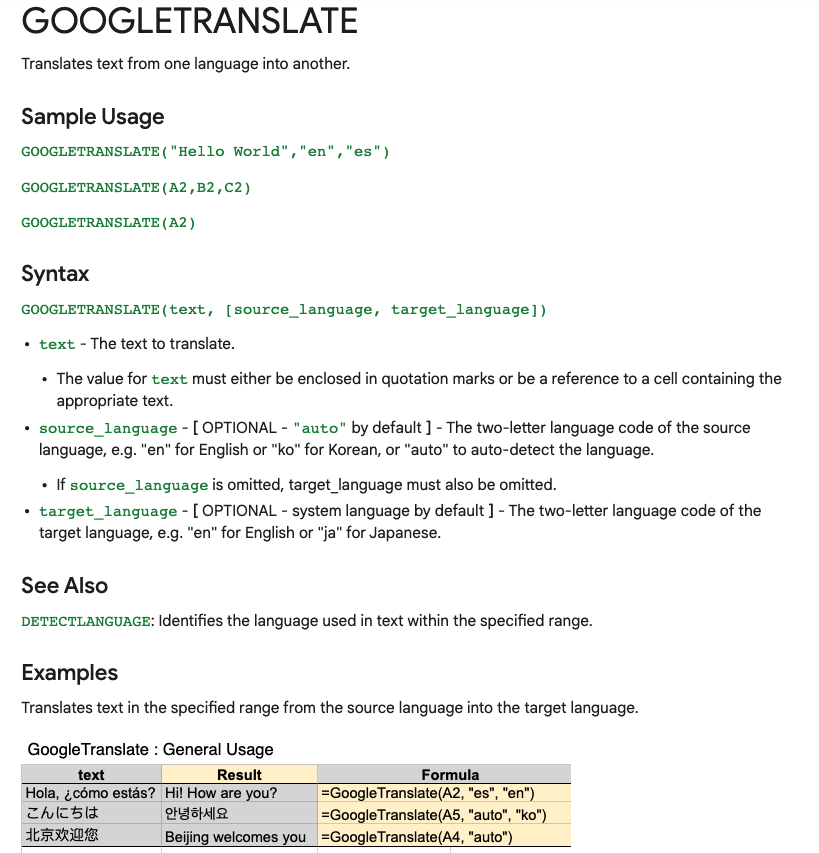
Need to convert data from one language to another?

Enter:
=GOOGLETRANSLATE("A2","en","es")

This will translate the words in cell "A2" from English to Spanish.

Replace "en" with "auto" and Sheets will identify the source language automatically.


Timesavers:

Assuming you're signed in to your Google account, head on up to your browser's address bar:

From there type: "
https://t.co/BeKgYV7g31"

Boom! A new Google sheet is created for you on the fly from anywhere on the web.

(Works for docs too)

Pretty cool!


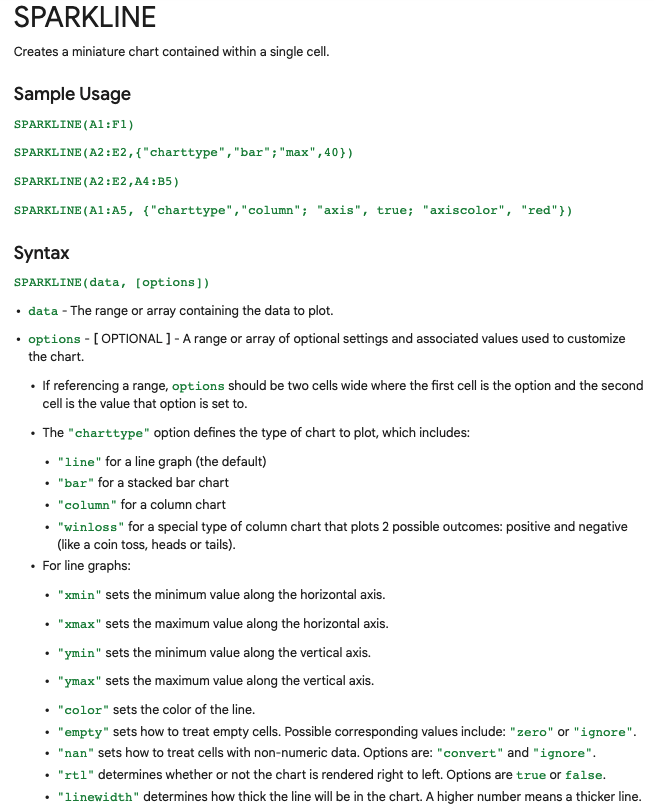
Sparklines:

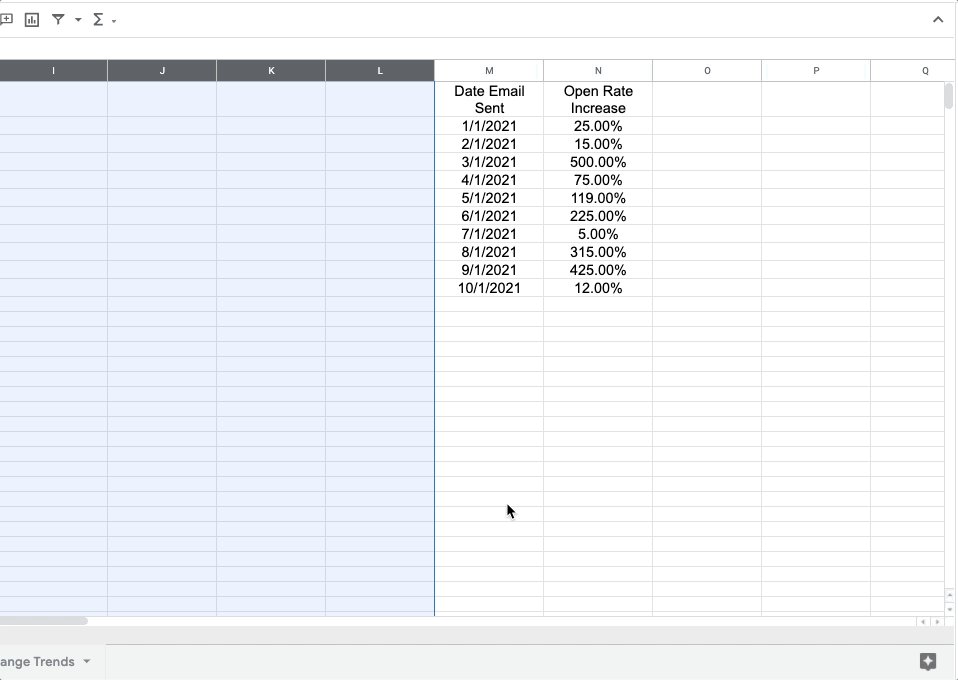
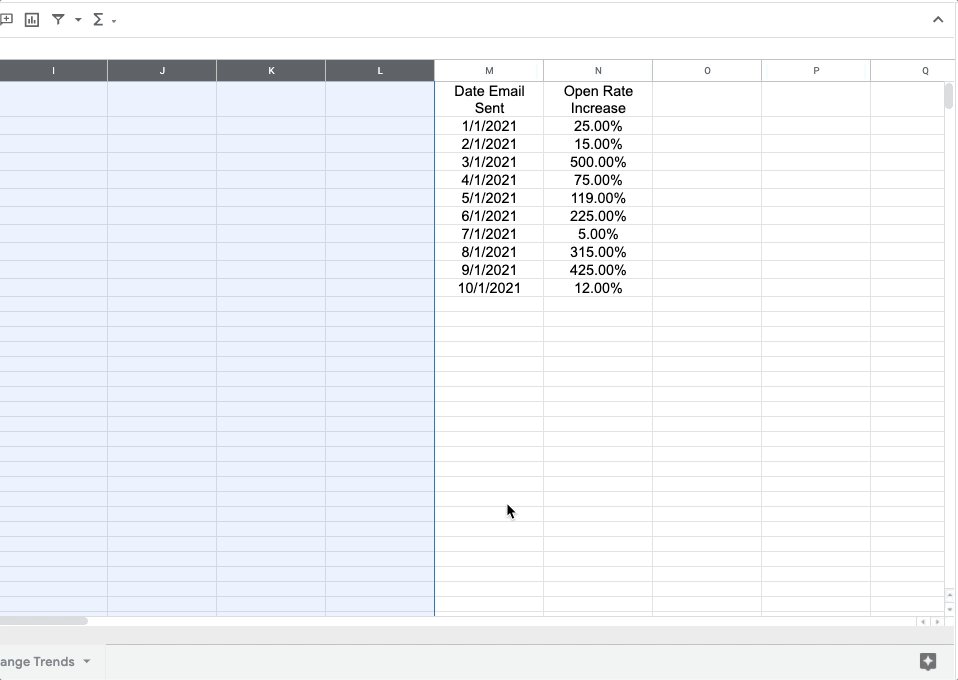
Easily visualize data trends by adding sparklines to your sheet.

To add a basic "mini-graph" inside a cell, it's as simple as inputting:

=SPARKLINE (A1:F1) – (Where A1:F1 represents your range of data.)

For more detailed options, check this out:👇🏻


Explore:

Need to do some number crunching?

Let Google's AI do the work for you.

•Highlight the range of data.

•Move your cursor to the starburst shaped icon in the bottom right corner.

•Click "Explore" – Complex charts, analytics, & detailed info. generated automatically.

More from All

You May Also Like

IMPORTANCE, ADVANTAGES AND CHARACTERISTICS OF BHAGWAT PURAN

It was Ved Vyas who edited the eighteen thousand shlokas of Bhagwat. This book destroys all your sins. It has twelve parts which are like kalpvraksh.

In the first skandh, the importance of Vedvyas


and characters of Pandavas are described by the dialogues between Suutji and Shaunakji. Then there is the story of Parikshit.
Next there is a Brahm Narad dialogue describing the avtaar of Bhagwan. Then the characteristics of Puraan are mentioned.

It also discusses the evolution of universe.(
https://t.co/2aK1AZSC79 )

Next is the portrayal of Vidur and his dialogue with Maitreyji. Then there is a mention of Creation of universe by Brahma and the preachings of Sankhya by Kapil Muni.


In the next section we find the portrayal of Sati, Dhruv, Pruthu, and the story of ancient King, Bahirshi.
In the next section we find the character of King Priyavrat and his sons, different types of loks in this universe, and description of Narak. ( https://t.co/gmDTkLktKS )


In the sixth part we find the portrayal of Ajaamil ( https://t.co/LdVSSNspa2 ), Daksh and the birth of Marudgans( https://t.co/tecNidVckj )

In the seventh section we find the story of Prahlad and the description of Varnashram dharma. This section is based on karma vaasna.