Use quotes
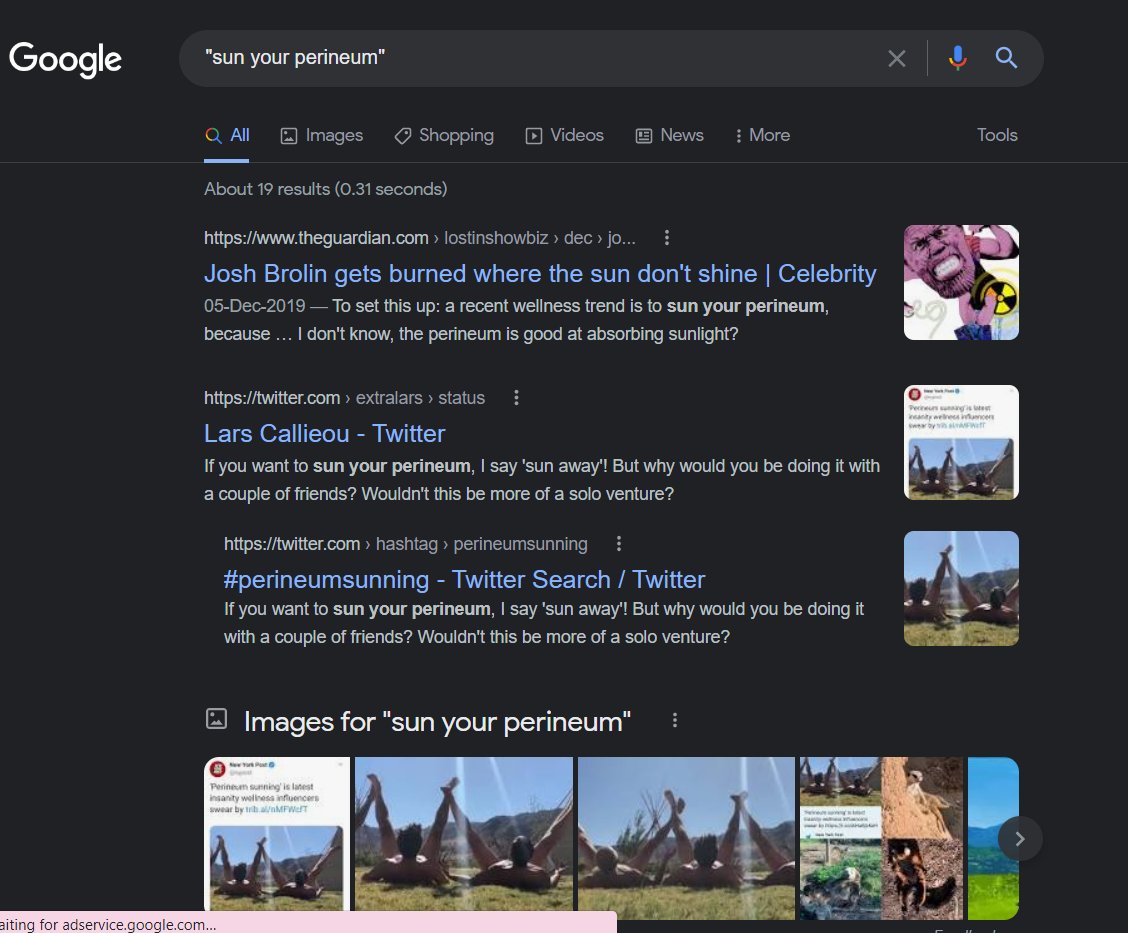
When searching for something specific: use quotes.
Search: Sun the perineum
And the engine will search for content that contains those 3 words in any order.
But if you search “Sun the perineum” it will search for that phrase exactly as you typed it.
Use a colon to search specific sites
Search: law of attraction site:https://t.co/XRep1lKOZU
Will show you results on the 'law of attraction' only from my website.
Find sites that are similar to other sites
Search: related:https://t.co/QOHfyrxF81
Will show you all the sites related to Twitter.
Find a specific file
Syntax: Wisdom filetype:pdf
Will show all pdfs related to 'wisdom'.
This can mostly be useful for scholarly purposes, business presentations and other assorted presentations.
Use
@ to search social media
Add
@ in front of a word to search social media.
Search: infinitians@twitter
Will show all the results for Infinitians from Twitter.
Look for images of specific colour, size, copyright, time or type.
If you search for Deadpool and tune your result to the colour orange
It will give you images of an orange Deadpool.
Yup really.
Compare two or more things using “vs”
If you want to determine whether living in Bali is better than Dubai
Just search: Bali VS Dubai
Spell Those Numbers
How do you spell out 6,546,345,645? Google can tell you if you search [number]=english
Play Games in Google Search
Google has a host of built-in games like Pac-Man, tic tac toe, Solitaire, Minesweeper, and Snake.
Search flip a coin and Google will do it for you; the same thing with a die or spinner.
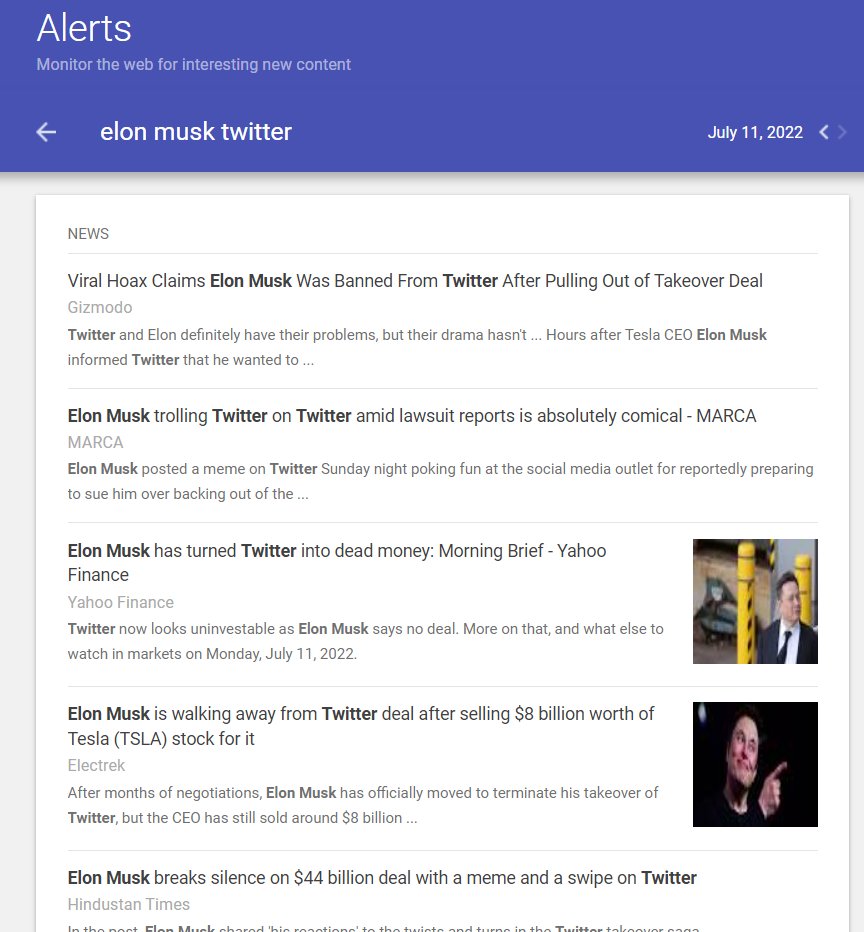
Create a Google Alert
If you want to be notified whenever a keyword is published on the web
Create a Google Alert
Use a hyphen to exclude words
Using "-" excludes words or phrases from the results.
Search: Rocky -film
Will show results related to 'rocky' in general but not the film Rocky.
Perform a Reverse Image Search
This function allows you to upload an image file and find information on that image.
Eg: if you uploaded a picture of the Eiffel Tower
Google will recognize it and give you information on the Paris monument.
Add a tilde (~) in front of a word to find synonyms
If you search for iPhone ~cheap
You will also get results for "iPhone inexpensive," and so forth.
Use Google search to do math
Perhaps my go-to feature.
Whether it's converting currencies
Dividing a big number
Or even calculating the square root of 4761
Google has you covered.
Leverage Google Shortcuts
• Weather *zip code* – This will show you the weather in the given zip code
• Time *place* – This will display the time in whatever place you type in.
• Define: *word* – This will display the definition of a word.
• Sunrise/Sunset *city*
Use an asterisk in place of words you do not know.
If you forget things and words easily, * will come to your rescue.
Search: imagine all * for today
And google will give you John Lenon on a silver platter.
Do you want to make rational decisions?
Do you want to live a happy life?
Do you want to build a successful business?
You need mental models to achieve them.
Click here to be in the 1% echelon:
https://t.co/llXIBEZd2B
Before you bounce off,
Join my FREE Telegram group:
https://t.co/FWsJIJ1I5l Also grab your FREE ebook on how you can make the most of your mind by decluttering it:
https://t.co/fzYxDovS9O
If you liked the thread follow me
@Infinitians1 for more.
Also retweet the first tweet to help spread the word:
https://t.co/Qe8BXKS6Ny